MadProjectorControl

The MadProjectorControl extension (listed under the Modules) allows you to control your video-projectors remotely through the network using the PJLink protocol. You can remotely power your PJLink-enabled projectors on and off, as well as mute their video and audio signal at will. With the help of MadMapper's Calendar Scheduler & Cue Scheduler, you can fully automate your installation, removing the need for a dedicated operator.
Installation & Setup
-
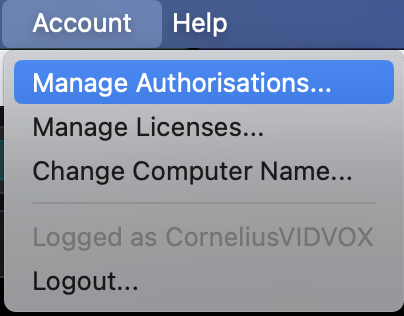
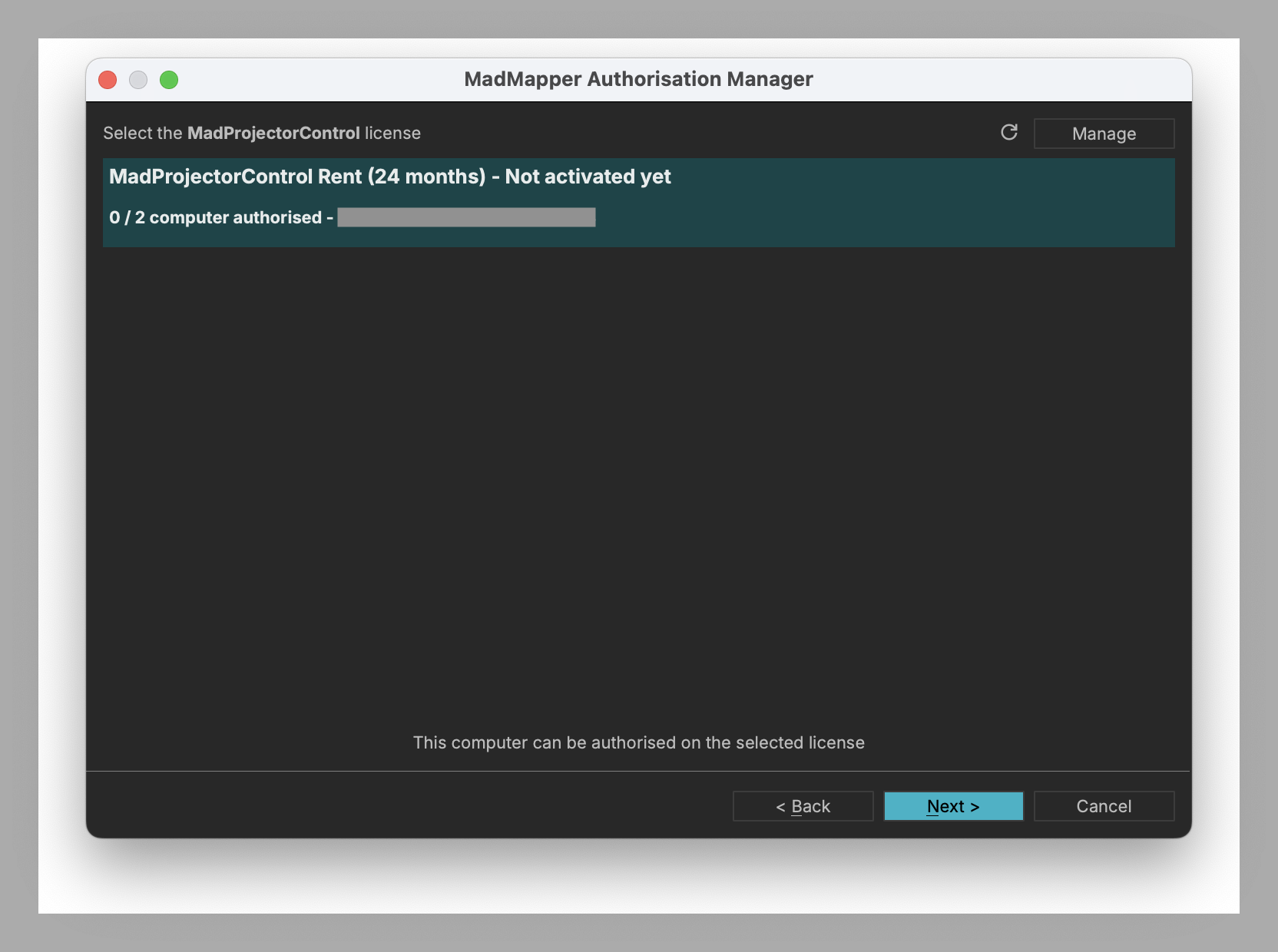
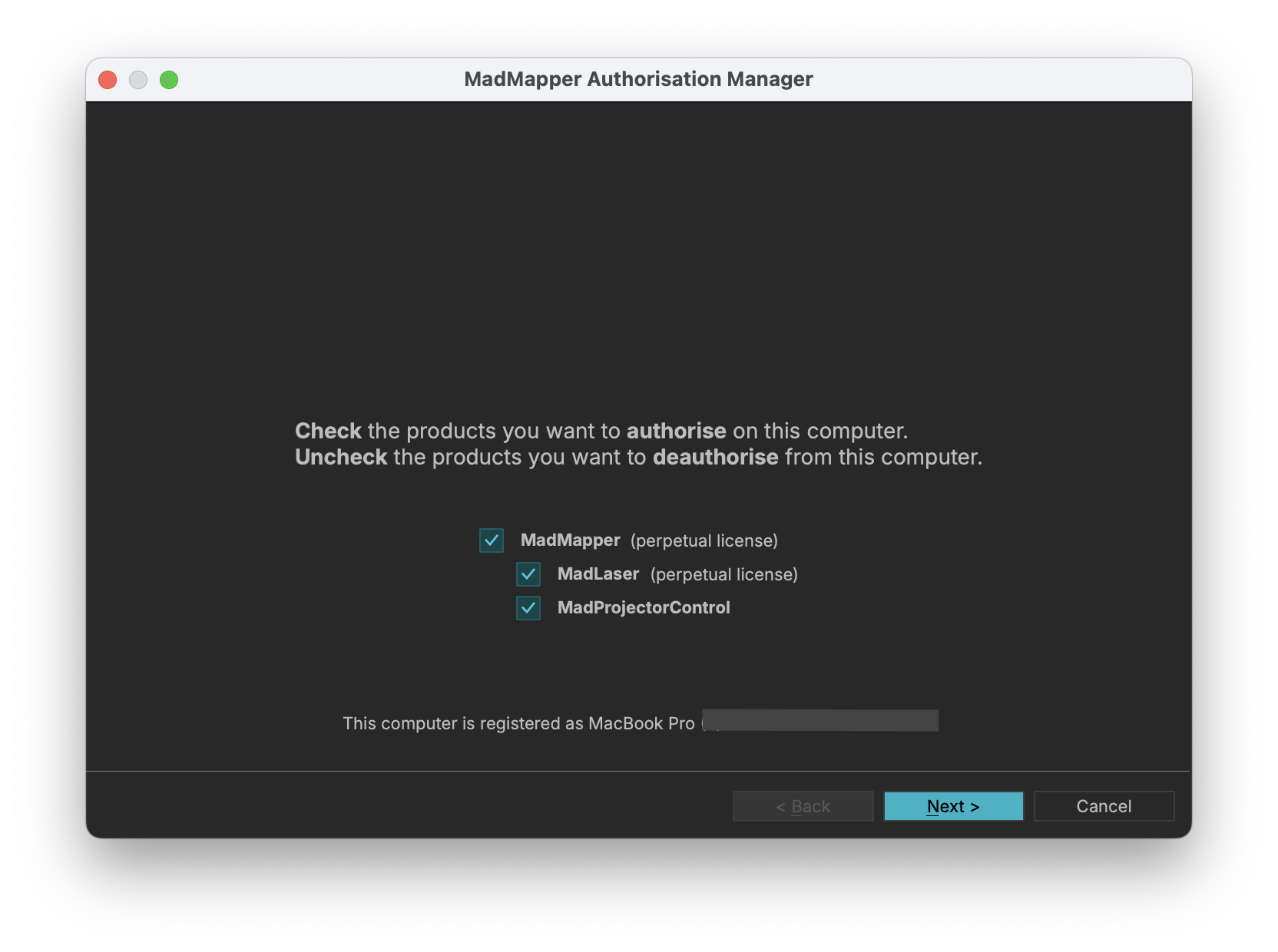
Authorisation: Within MadMapper, click on the Account menu in the top bar, then select Manage Authorisations. Select MadProjector Control and follow the procedure. The admin password of your computer will be asked before restarting.
-
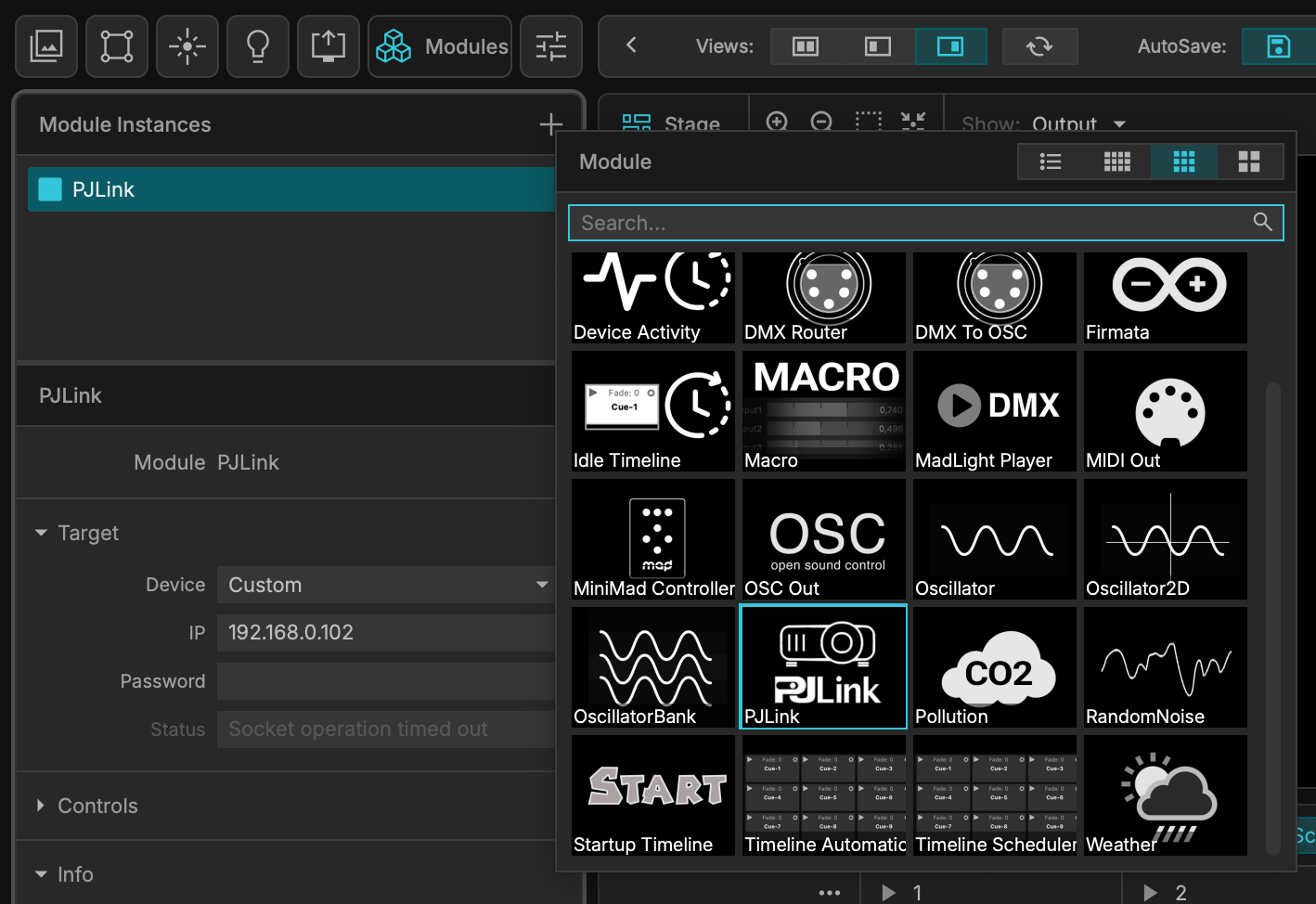
Adding the Module: Go to the Modules tab accessible from the top left of the interface. Click on the icon at the left of the Modules list to add a module and select PJLink. You must add a PJLink module instance for each projector you want to control.
-
Network Prerequisites: For power saving reasons, the projector's network interface may be disabled when the projector is turned off. You may want to disable this power saving feature if MadMapper is supposed to turn on the projector. Once the green LED on the projector's Ethernet connector is lit, you can test connectivity by pinging the projector on the network.
Target Configuration
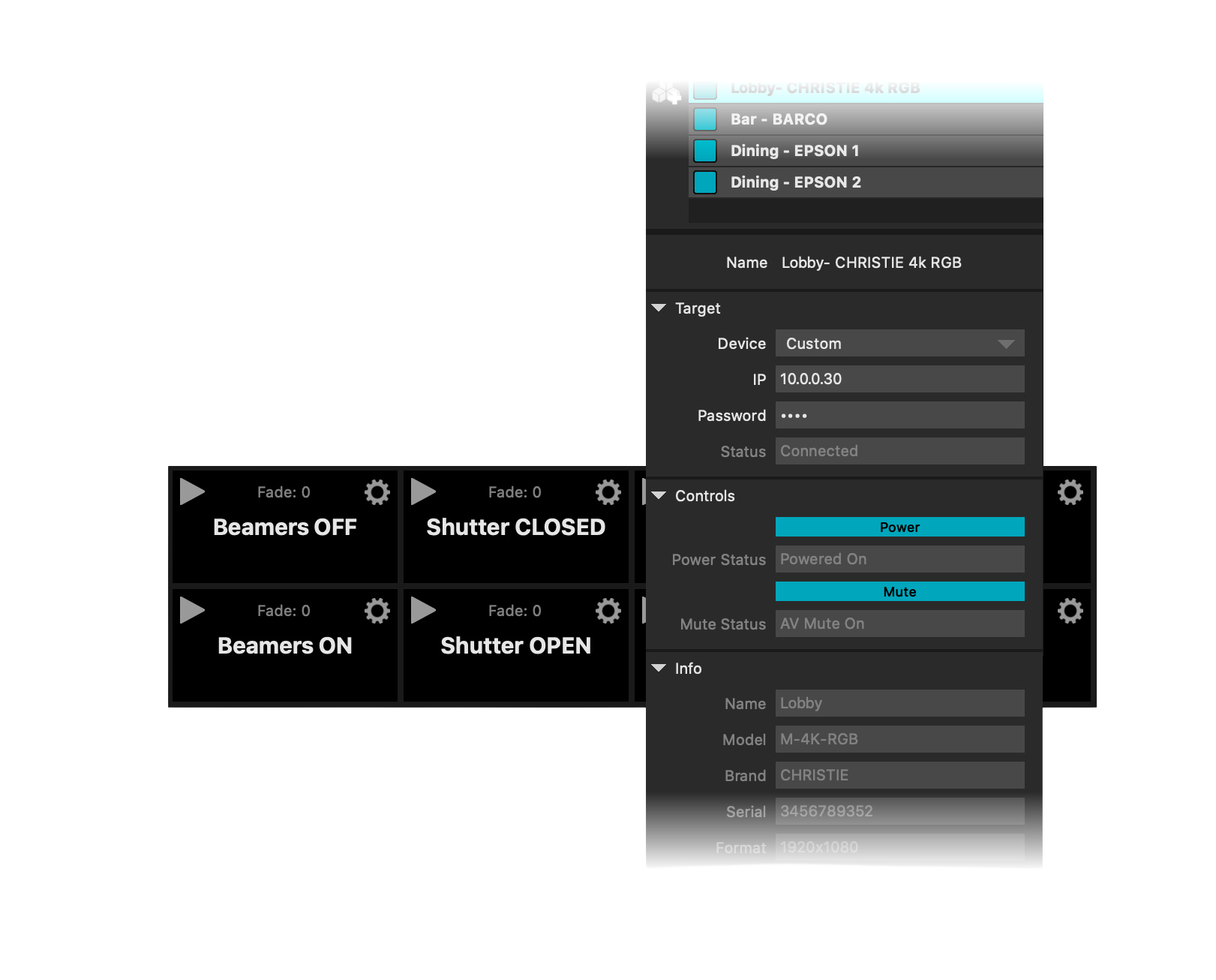
Once connected to the same ethernet network, you must setup the Target fields of the module first.
-
Device Selection: Relying on the PJLink discovery protocol, all supported-devices IP addresses will appear in the Device dropdown list, which can take up to 30 seconds after MadMapper has started.
-
Manual Setup: Since the protocol is not supported by all PJLink-enabled devices, you can otherwise manually input the projector IP by selecting Custom Device.
-
Security: Depending on the projector's model and configuration, you may need to enter a password to connect to the device.
Controls & Info
Once the status becomes connected, you will get access to the Power and Mute Controls.
-
Power Behavior: When changed, the Power button represents the desired power state of the projector. The desired state may not be reached immediately; for example, if the projector is still cooling down, the order will be delayed until it is enabled to be powered on again.
-
Mute Behavior: Click the Mute button to mute or unmute both the audio and video of the projector. Video mute can have different effects depending on the projector's technology, such as engaging a motorized physical shutter on older models, or instantly cutting the light-source on newer models. The projector's Mute status will remain blank until the device gets powered on.
-
Bidirectional Feedback: In the absence of control changes in the module, the Power and Mute button states will match the actual state of the projector. If the projector gets powered off or muted using the device's physical remote, the PJLink module will eventually update to reflect the new state.
-
Projector Info: The Info section will display the projector's Name, Model, Brand, Serial, and Format once the Status becomes connected. The projector's Format will remain blank until the projector is turned on and receives a signal.