Project Backup & Recovery
MadMapper features robust integrated tools to protect complex mapping data, hardware routing, and generative programming from accidental loss. Outside of your standard, File > Save Project or Save Project As, MadMapper offers additional options to configure your setup to keep your projects safe as you continue to work on them.
AutoSave System

MadMapper operates a background AutoSave mechanism that routinely creates recovery snapshots of your workspace. Because AutoSave does not overwrite your actual project file, you can always reload the project to the exact state you manually saved it.
-
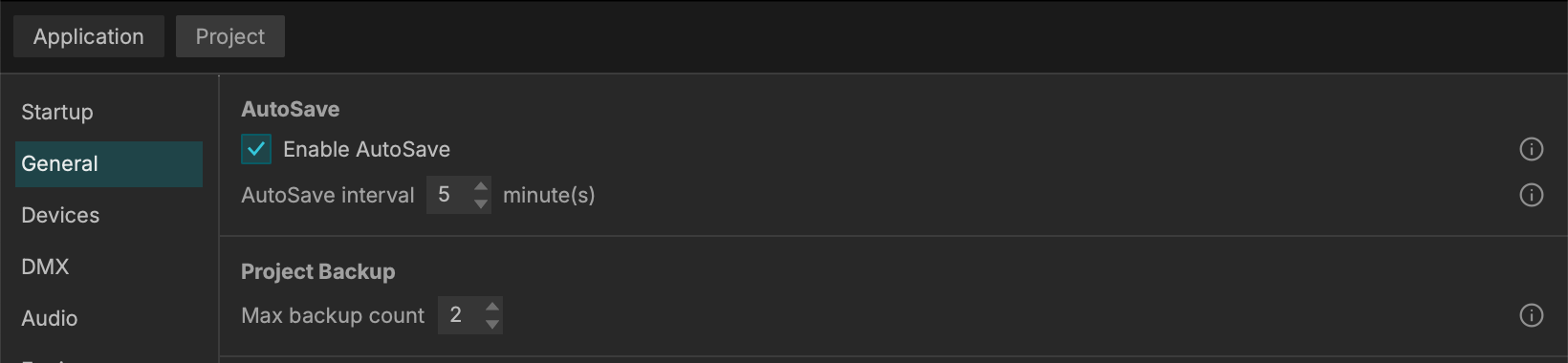
Configuration: You can enable this feature and set the save interval (e.g., every 5 minutes) by navigating to Preferences > General.
-
File Location: When AutoSave is on and the project is modified, the current state is saved to an autosave file located in the
MadMapperProjectData/sub-folder. -
The 10-Second Countdown: A countdown will appear 10 seconds before the AutoSave triggers. This gives you time to disable it in case you are live and want to preserve your project's saved state, or if you simply don't want the background save process to cause a dip in the application framerate.
-
Toolbar Control: When enabled in Preferences, the feature is active by default, but you can temporarily deactivate it until the application quits by clicking the AutoSave button in the toolbar. (If AutoSave is completely disabled in Preferences, this toolbar button will be greyed out).
-
Crash Recovery: If your computer or the application unexpectedly quits, the next time you launch it, MadMapper will propose you to recover the AutoSave state.
Project Backup
In addition to the automated background snapshots, MadMapper maintains a localized history of your manual saves.
-
Version History: When saving a project, MadMapper will automatically backup the previous version in the
MadMapperProjectData/sub-folder. -
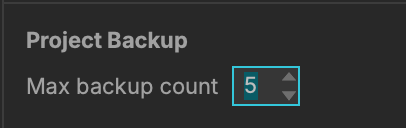
Max Backup Count: Located in Preferences > General right beneath the AutoSave settings, this setting controls the maximum number of backups stored for the current project.
Workspaces & File Collect
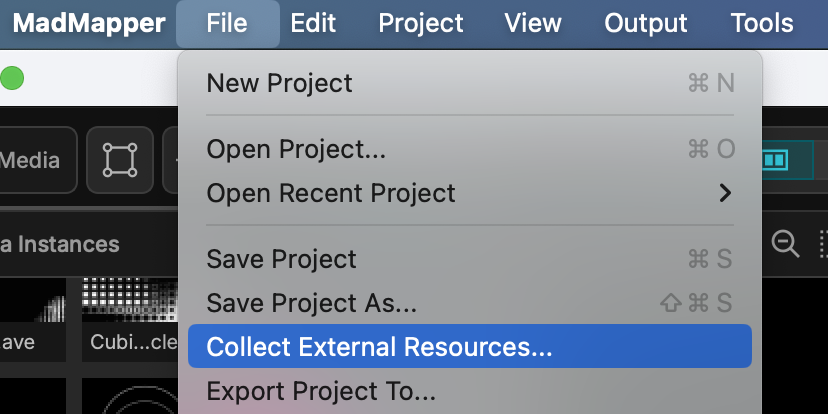
Large projection mapping projects often rely on hundreds of scattered media files, custom shaders, and 3D models. You can define a specific global folder as your Workspace. When archiving or moving to a show computer, use the File Collect feature to automatically gather and package every piece of media referenced in your project into one consolidated directory. This prevents "Missing File" errors and makes it easy to back up the entire installation to an external drive or cloud-sync service.
Export Project To
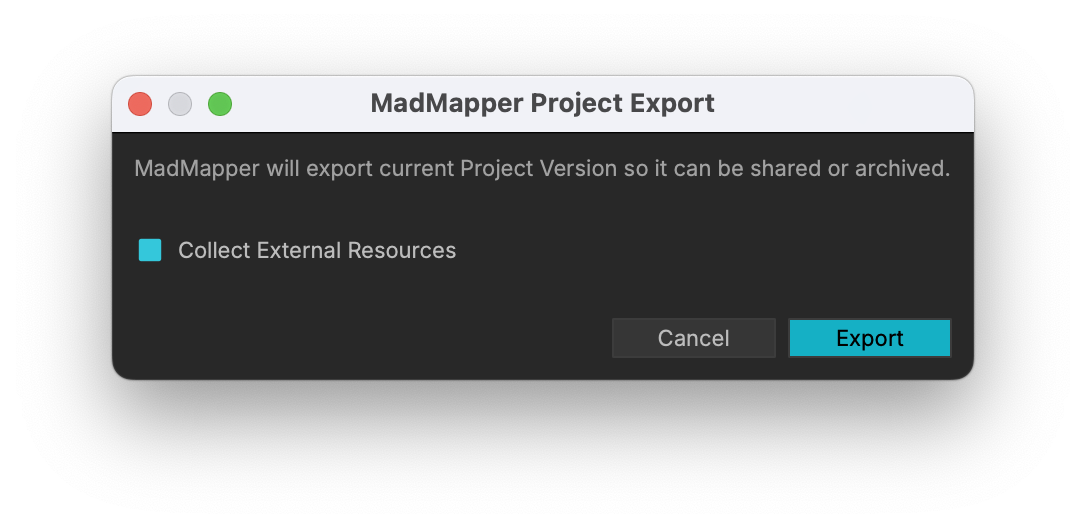
File > Export Project To is a way to export your complete MadMapper project folder with all resources (option) to a new destination. If you are passing your project off to a client or exporting to an external hard drive, this method will make sure that all the necessary information is saved to your new destination.