Media Formats & Video Codecs
Selecting the appropriate video codec and media format is a critical factor for the performance and stability of MadMapper projects. Projection mapping frequently requires playing multiple high-resolution video streams simultaneously, which can heavily impact system resources if unoptimized formats are used.
While MadMapper utilizes native video engines and FFmpeg to leverage hardware decoding whenever possible, the formats you choose determine how efficiently your system can process the media.
Supported Media Formats
MadMapper utilizes FFmpeg and FreeImage backends, providing broad compatibility for a massive variety of video, image, and audio containers.
Supported Video Containers: mov, mpeg, mpg, mp4, m4v, mkv, avi, wmv, asf, gif, mts, ts, h264, flv, dnxhd, m2ts, vob, dv, webm
Supported Image Containers: jpg, jpeg, jp2, j2k, jxl, bmp, png, psd, exr, heic, hdr, raw, tiff, tif, sgi, ico, tga, dds, webp, pict, pdf, svg
Supported Audio Containers: wav, mp3, aac, flac, ogg, aif, aiff, m4a, ac3, wma
Supported Vector Animation: json (MadMapper supports Lottie format JSON files, allowing you to import vector animations directly from After Effects using the Bodymovin plugin).
(Note: NotchLC and DXV codecs are not currently supported).
Optimized Video Codecs for Live Performance
HAP Codec (Highly Recommended)

HAP is the industry-standard codec for live performance and multi-layer projection mapping.
-
How it works: HAP files are demuxed by FFmpeg, but MadMapper performs native HAP decoding directly on the GPU.
-
The Benefit: This enables the playback of multiple extremely high-resolution video layers with minimal risk of dropped frames. It is perfectly suited for rapid triggering, reverse playback, timeline scrubbing, and chunked decoding.
-
The Trade-off: HAP files require high disk read speeds and result in massive file sizes. Fast NVMe SSDs are required for multi-stream playback.
-
Variants: HAP (Standard), HAP Alpha (supports transparency), HAP Q (highest image quality). Note: HAP R is currently supported on Windows only.
Apple ProRes
ProRes is a high-quality alternative, exceptionally optimized for macOS.
-
The Benefit: It offers visually lossless quality with smaller file sizes than HAP. On macOS, MadMapper enables hardware acceleration for ProRes by default via Apple's VideoToolbox, providing vastly superior performance over standard CPU decoding.
-
The Trade-off: While highly efficient on Mac, ProRes generally requires more system resources than HAP when playing a high number of simultaneous layers, and is not recommended for Windows playback.
H.264, HEVC (H.265), AV1, and H.266
While MadMapper fully supports modern delivery codecs like H.264, HEVC, AV1, and H.266 (via FFmpeg), they require careful consideration when used for live projection mapping.
-
The Challenge: These are highly compressed "inter-frame" codecs designed primarily to save file size rather than optimize real-time playback.
-
The Result: They require significant CPU processing power to decode. Playing multiple heavily compressed clips simultaneously, reversing playback, or scrubbing the timeline may lead to dropped frames or stuttering. (Note: If forced to choose for file-size reasons, H.264 decodes faster than HEVC).
-
The Workaround: If you are using H.264 for non-linear playback, rapid triggering, or timeline scratching, configure your video export settings to generate a keyframe for every single frame (often called an "All-Intra" setting or a Keyframe Distance of 1). This increases the file size but removes the heavy mathematical decoding calculations, significantly reducing CPU bottlenecks.
Hardware Decoding vs. FFmpeg Processing
MadMapper handles hardware decoding differently depending on your operating system to ensure stability. If hardware acceleration fails or is unsupported for a specific file, MadMapper will seamlessly fall back to the FFmpeg CPU decoder.

macOS Decoding
-
ProRes: Hardware acceleration is enabled by default (via VideoToolbox) and is highly optimal.
-
H.264 / HEVC Limitations: While users can enable hardware acceleration for these formats via Apple's AVFoundation framework, there is a known OS-level limitation regarding audio routing. AVFoundation forces audio to route to the macOS system default output, bypassing MadMapper's internal audio preferences. Because of this, it is generally recommended to leave hardware acceleration off for these formats and rely on MadMapper's highly optimized FFmpeg implementation to ensure proper audio routing.
Windows (PC) Decoding
-
DXVA 2: On Windows, Hardware Acceleration is disabled by default. This is because non-Direct3D implementations require a GPU-to-CPU-to-GPU "ping-pong" data transfer that mitigates performance gains, and hardware drivers can occasionally be unstable with specific codecs.
-
Enabling: You can manually enable Windows hardware decoding via DXVA 2 by going to Project Preferences > Engine > Media and checking "Enable Hardware Acceleration Option".
Image Sequences (Folder Player)
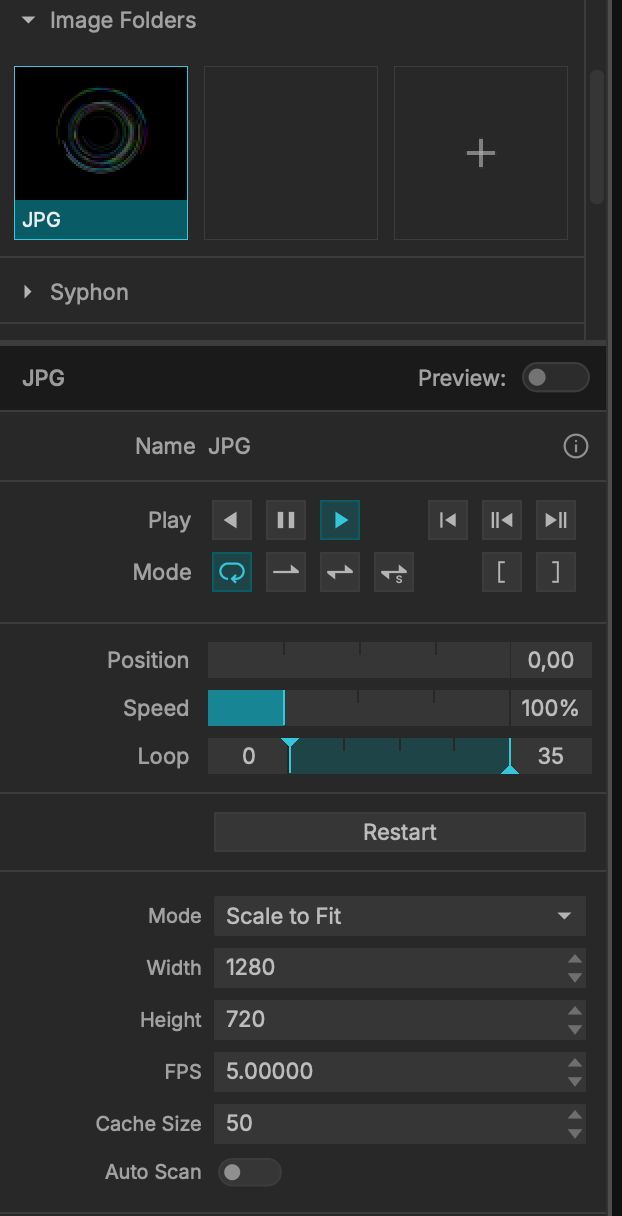
For pristine, uncompressed playback, MadMapper allows you to load entire folders of images and play them back as a video sequence.
-
Naming Convention: To ensure proper playback order, files must be named sequentially with padded zeros (e.g., 00001_image.png, 00002_image.png, 00003_image.png).
-
Limits: There is no maximum limit to the number of images in a folder sequence (1,000,000+ files will load seamlessly).
-
Playback Controls: Image sequences feature the exact same playback modes as standard movies, allowing you to loop, ping-pong, hold, and scrub the sequence.
Advanced Image Formats
EXR (32-bit Floating Point)
MadMapper fully supports high-dynamic-range EXR image files. The software utilizes the FreeImage library to parse the EXR and converts the data directly into a 32-bit floating-point format for internal rendering. This massive dynamic range and precision makes EXR files exceptionally useful for driving custom shaders, creating high-end displacement maps, or precisely controlling laser variables.
Supported Channels & Conversion: Depending on your export settings from other software, MadMapper processes EXR files into the following formats:
-
Single Channel (Red): If the EXR is exported as a 64-bit IEEE floating point (FIT_DOUBLE), MadMapper will convert and optimize it into a 1-channel, 32-bit float Red image.
-
Multi-Channel (RGBA): If the EXR is exported as a 96-bit RGB float (FIT_RGBF) or 128-bit RGBA float (FIT_RGBAF), MadMapper will convert it directly into a standard 4-channel RGBA 32-bit float image.
SVG (Scalable Vector Graphics)
MadMapper supports direct SVG imports.
-
For Video Surfaces: You can manually define the exact pixel resolution you wish the SVG to render at, allowing for infinite scaling without rasterized pixelation.
-
For Laser Surfaces: Render size parameters are ignored, as the laser engine directly traces the mathematically pure vector paths of the SVG for its scanner output.