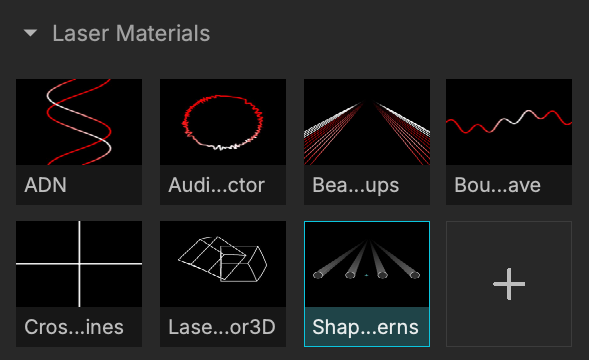
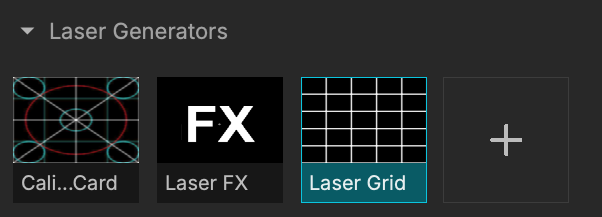
The Media Pool is your central media hub organized into two sections: the Media Bin and the Media Inspector.
Location
Access your Media Pool by clicking on Media (manage Media) at the top left of the interface:
Keyboard shortcut: Cmd + 1 unless Seprate Media Tab has been enabled.
MadMapper's top menu > View > Separate Media Tab allows you to move the Media Pool to the right side of the software interface.
Quickly separate the Media tab with the icon at very top right of the interface too.
Add Media
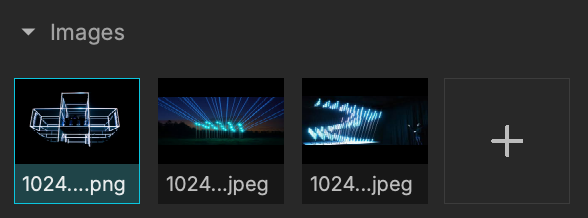
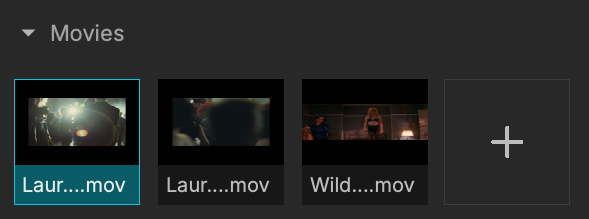
From any Media category, you can click the "+" button to add new media:
You can also drag and drop your media into the pool.
Or even directly into one of your Timelines.
Remove a media from the pool at any time with the Delete key.
Media Pool Mechanics
The view icons at the top of the Media Pool allows you to display your media in a list or grid with different sizes:
Click on the little arrow to fold/unfold each category:
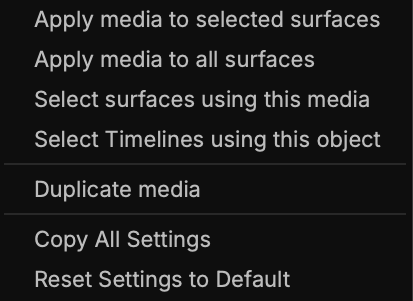
Or access information/options by right-clicking on any media item:
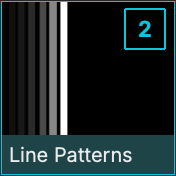
At the top right of each media thumbnail, a marker shows you how many Surfaces are using the media:
Clicking the number will select all surfaces with this media.
Media Bin
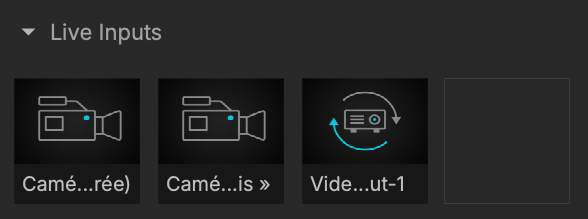
The Media Bin displays every available media, sorted into type categories.
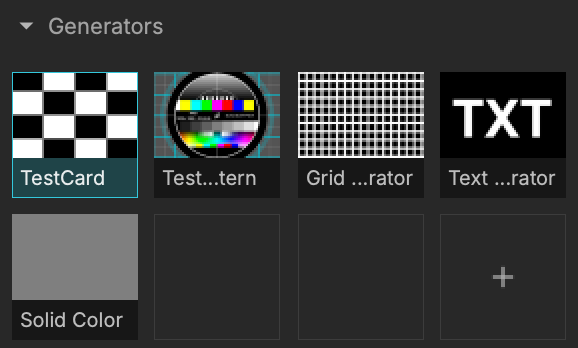
Generators
The generators are built-in and are initially intended for testing and calibration.
They are rendered at a specified pixel size in a texture.
Note that generators also include the Text Generator as well Materials if you drag and drop one in the Generators list.
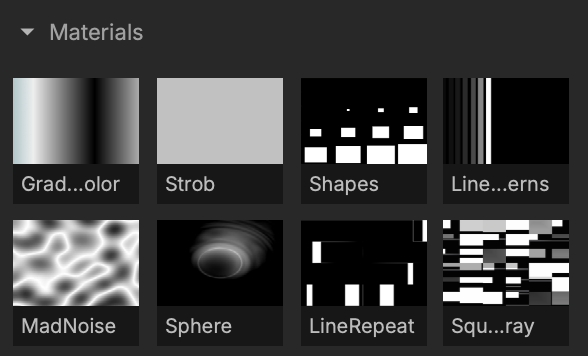
Materials
Materials are generative shaders, rendered directly on the output destination (projector or preview windows).
Unlike generators where only one rendering will be done regardless of their number in your surfaces, the materials are rendered separately on each of the surfaces where they are used.
The materials are allowing extra precision at high resolution, at the expense of rendering speed.
The Montages category displays your Timeline montages.
Media Inspector
The Media Inspector, located below the Media Bin, allows you to access a wealth of information, settings, and parameters specifically tailored to the media currently selected in your library.
Preview & Infos
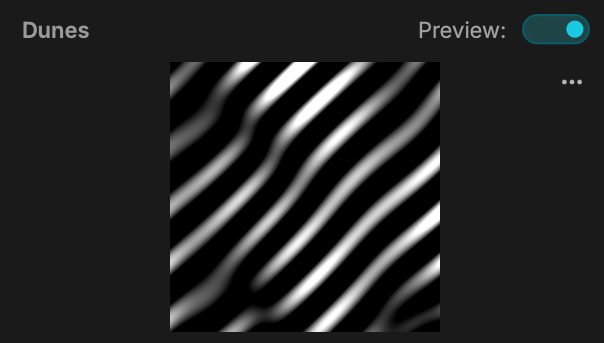
At the top of the inspector, MadMapper displays a live preview of your selected media (which can be toggled on or off via the Preview switch to save processing power). If the preview is open, you can click the three dots on the right to update or reset the thumbnail instance of the selected media when a visual is actively running.
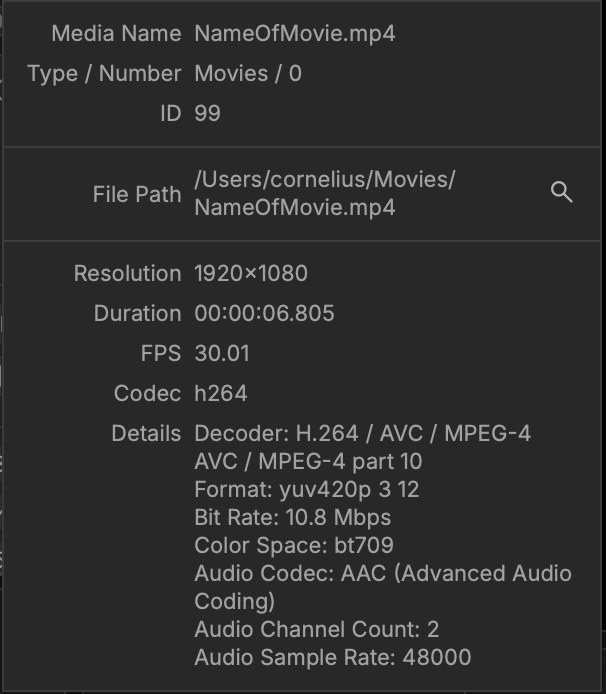
Next to the media name, you can click the info icon (the small "i") to reveal a highly detailed, read-only pop-up containing critical file information. For a video file, this panel includes:
Media Identity: The Media Name, Type / Number classification, and internal software ID.
File Path: The exact directory location of the source file on your hard drive, which includes a magnifying glass search icon.
Basic Properties: The native Resolution, total Duration, native FPS, and primary Codec.
Advanced Details: An in-depth technical breakdown including the specific video decoder, pixel format, bit rate, color space, and embedded audio data (audio codec, channel count, and sample rate).
Media info pop up
When the preview is active click on the three dots on the right to update or reset the thumbnail instance.
Settings and Parameters
One of MadMapper's most powerful features is the ability to edit numerous playback settings, routing options, and visual parameters directly from the Media Inspector.
These settings are highly specific to the type of media selected. Below is a breakdown of how the inspector adapts to different media formats.
Settings and parameters are specific to the media.
They can vary greatly from one type of media to another.
Movies Inspector
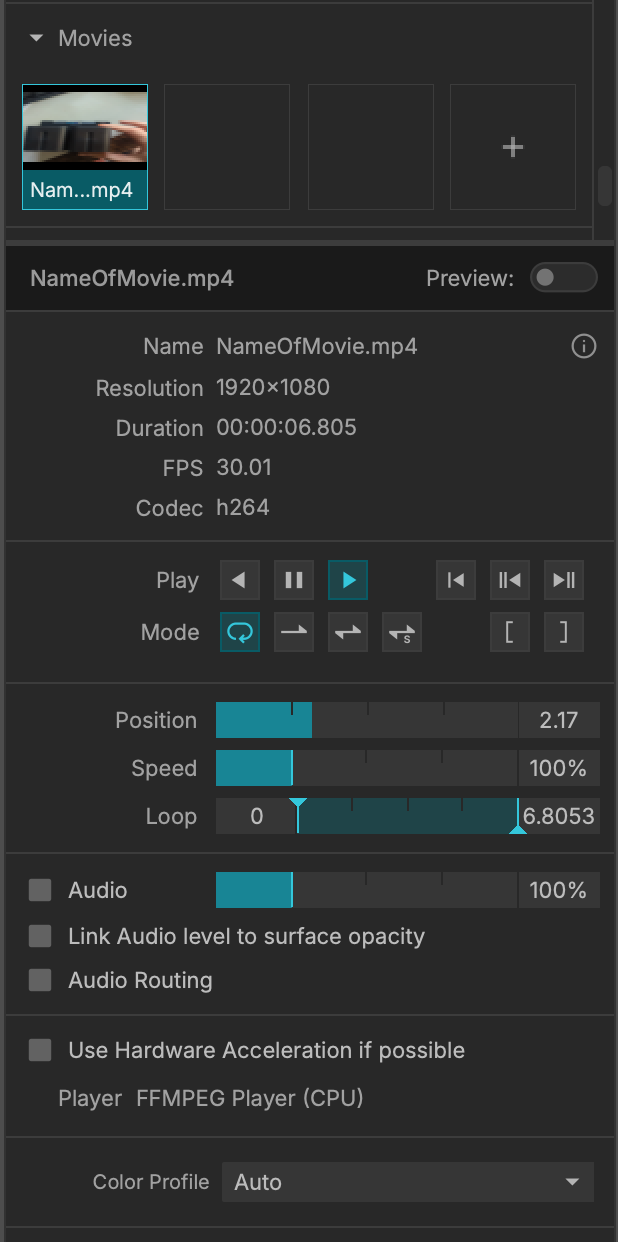
When a video file is selected, the inspector transforms into a comprehensive playback controller.
Playback Controls: Standard transport controls allow you to step backward, pause, play, step forward, or jump immediately to the beginning or end of the clip.
Playback Mode: Define how the clip behaves when it reaches the end. Options include looping continuously, playing once and holding the last frame, ping-ponging (playing forward then reversing), or playing random frames.
Timeline Sliders: Click and drag to manually adjust the playhead Position, alter the playback Speed (percentage), and set custom Loop in and out points to restrict playback to a specific segment of the video.
Audio Routing: If the video contains an audio track, you can toggle the audio on/off, route it to a specific device, adjust the volume, and link the audio level directly to the opacity of the surface it is mapped to.
Engine Settings: Toggle Use Hardware Acceleration if possible and view the active video player backend (e.g., FFMPEG Player). You can also manually assign the Color Profile.
Image Folder Inspector
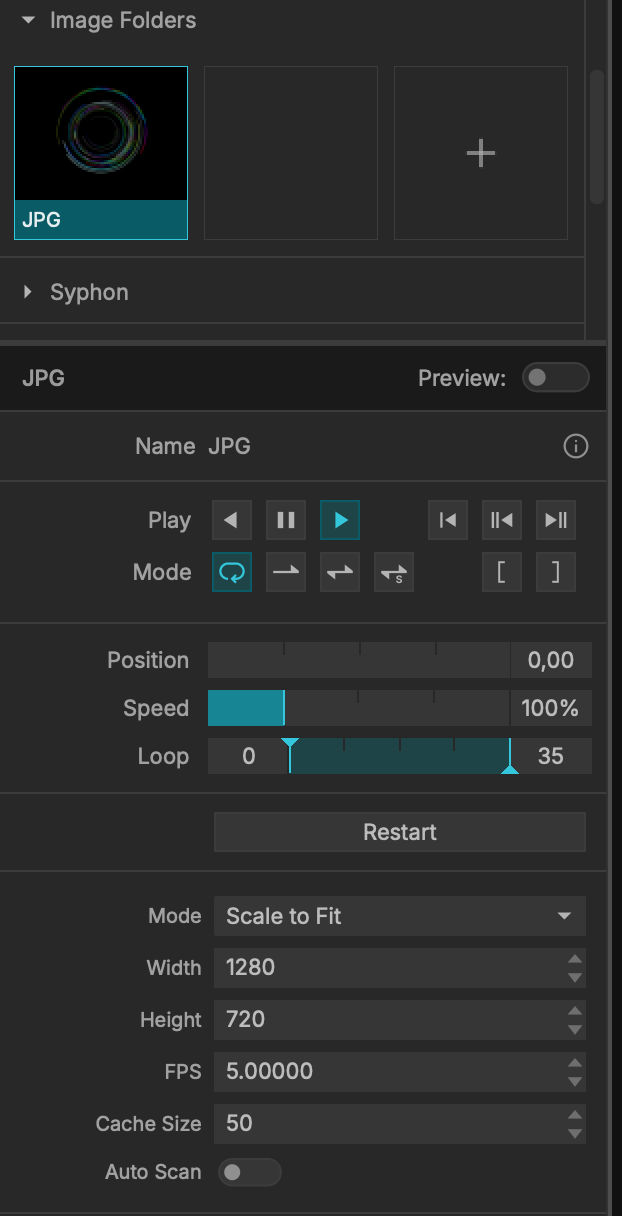
When you import a folder of sequential images, MadMapper treats it as a continuous video sequence. The Image Folder Inspector contains many of the same transport and playback mode controls as the Movie Inspector, but adds parameters specific to rendering raw images:
Naming Conventions: Because MadMapper orders files alphabetically, it is highly recommended to format your image sequences with leading zeros (e.g., 00001_image.png, 00002_image.png) to ensure correct chronological playback.
Sequence Limits: There is no maximum limit to the number of images a folder can contain. While sequences containing 1,000,000+ files will load successfully, actual playback performance is highly dependent on your computer's hardware capabilities.
Playback & Modes: Full access to standard play, pause, loop, ping-pong, and timeline/speed sliders.
Sizing Mode: Determine how the images fit within the internal render texture (e.g., Scale to Fit).
Resolution & FPS: Unlike movies, image sequences do not have a native embedded frame rate. You must manually define the playback FPS, as well as the internal rendering Width and Height.
Cache Size: Define how many frames are pre-loaded into memory to ensure smooth playback.
Auto Scan: Toggle this to have MadMapper automatically detect and incorporate new images added to the physical folder on your hard drive while the software is running.
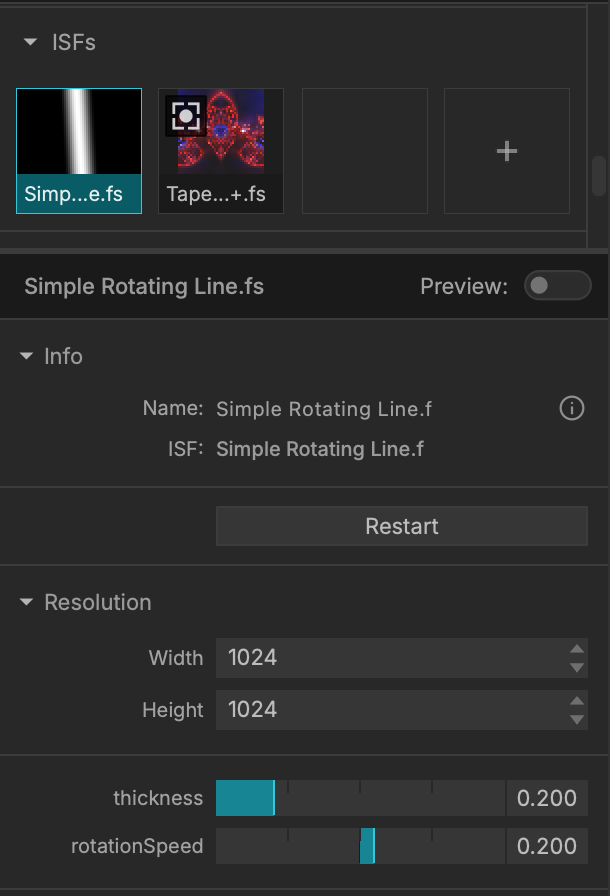
Generative Media (ISF, Quartz, Materials, Lasers)
When selecting mathematically generated media—such as ISF Shaders, Quartz Composer patches, internal Materials, or Laser Generators—the inspector adapts to expose the underlying code variables.
Resolution: Because generative media is math-based and resolution-independent, you can manually define the exact internal rendering Width and Height you want the visual to generate at.
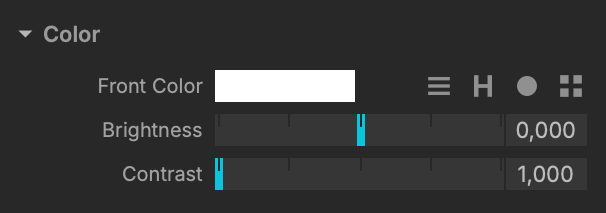
Custom Parameters: The controllable sliders and colors available here are entirely dependent on the specific file selected. For example, a "Simple Rotating Line" ISF shader will expose custom sliders for thickness and rotationSpeed. If you write your own custom shaders, any variables you expose in the code will automatically populate here as controllable UI elements.